Page Tiles Enlarge an image to print big
Enlarge an Image to Print on Multiple Pages
A picture has a fixed number of pixels. Printing it larger lowers the DPI and makes softness easier to see. The tables below give practical print widths for common image sizes.
Pixels, inches and DPI
DPI here means pixels per inch of the finished print. Divide the picture’s width in pixels by the finished width in inches:
4000 px ÷ 26.7 in (68 cm) = 150 DPI
Page Tiles does this for you as you resize, and shows a grade next to the file name.
| Grade | DPI at finished size | What it looks like |
|---|---|---|
| Sharp | 300 and up | Like a photo print, even with your nose on it |
| Good | 150 to 299 | Clean at arm’s length |
| Fair | 100 to 149 | Fine on a wall from a few steps back |
| Blurry | under 100 | Soft even from across the room |
| Vector | PDF pages | Lines and text crisp at any size, if the PDF was made on a computer. A scan is only as sharp as the scan. |
How big can your picture go?
Maximum finished width at each grade. Height follows the picture’s shape.
| Picture | Typical source | Good (150) | Fair (100) |
|---|---|---|---|
| 1080 px | Social media, messaging apps | 18 cm / 7 in | 27 cm / 11 in |
| 2000 px | Website images, older phones | 34 cm / 13 in | 51 cm / 20 in |
| 4032 px | Recent iPhone (12 MP) | 68 cm / 27 in | 102 cm / 40 in |
| 6000 px | 24 MP camera | 102 cm / 40 in | 152 cm / 60 in |
| 8064 px | 48 MP iPhone mode | 137 cm / 54 in | 205 cm / 81 in |
Viewing distance matters more than any number. A poster above a sofa is seen from two or three metres, where 100 DPI looks fine. A map people lean in to read wants 150 or more.
Enlarge and print on multiple pages
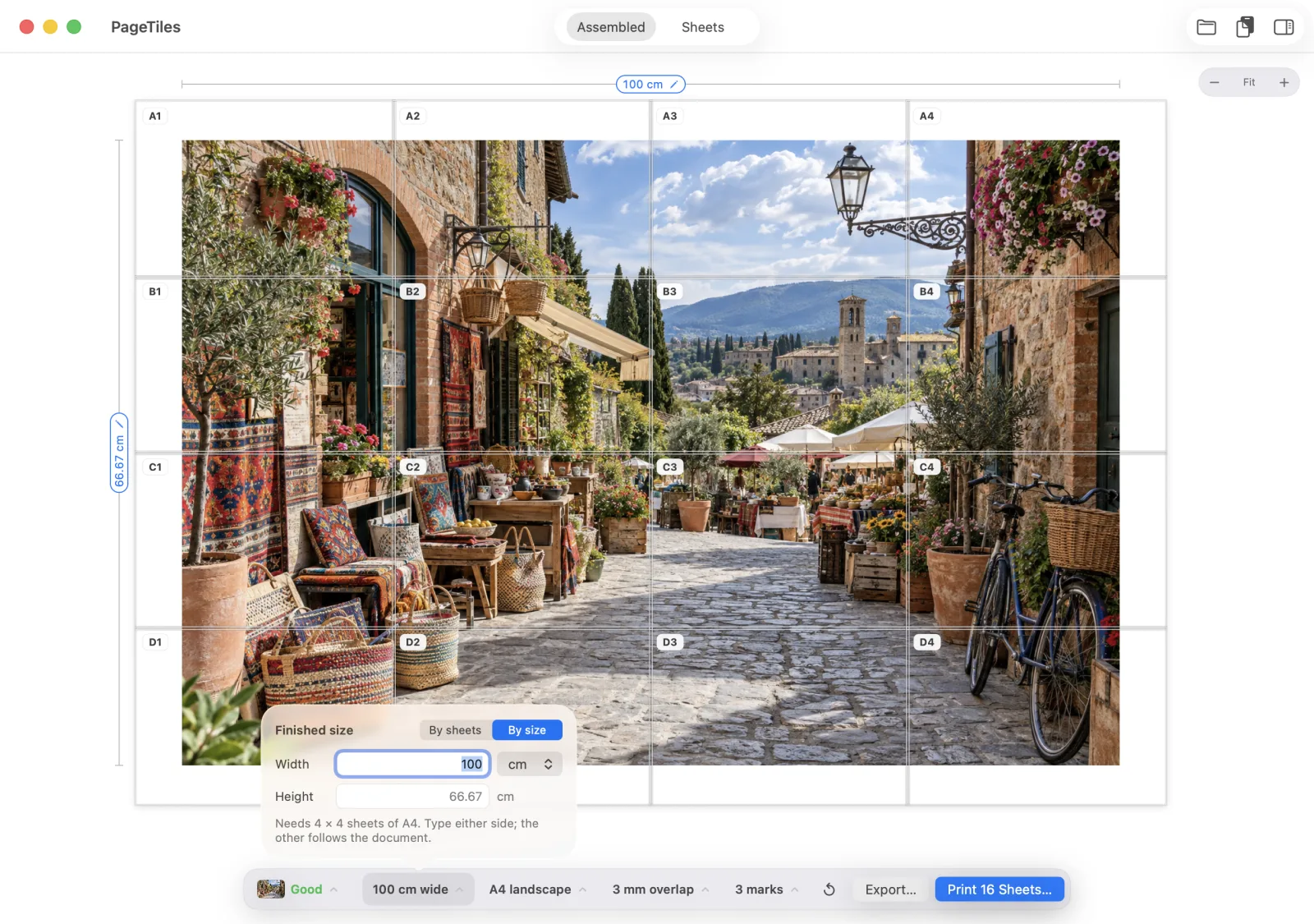
- Open the picture in Page Tiles. The inspector shows its pixel size and the DPI at the current size.
- Choose By size and type the width you want. The sheet count and the grade update as you type.
- Watch the badge. If it drops to Blurry, bring the size down until it reads Fair or Good, or find a bigger file.
- Check Sheets view, set overlap and marks, then print at 100%.
Get Page Tiles on the Mac App Store $2.99 one-time · macOS 12+
When the picture is too small
- Print it smaller. A sharp 50 cm print looks better than a blurry metre.
- Find a bigger original. Camera roll, the photographer, or the site’s full-size download.
- Upscale it with an AI upscaler, then open the result. Faces and text sometimes come out strange, so check at 100% zoom first.
- Use a vector version. Logos, diagrams and charts often exist as PDF or SVG. A PDF made on a computer keeps its lines and text crisp at any size. A scan saved as a PDF doesn’t: it’s still pixels. See printing a PDF on multiple pages.
Questions
Does changing the DPI setting in an image editor make it sharper?
No. Changing the DPI number without adding pixels only changes the default print size. The detail stays the same. Page Tiles ignores that number and works from the pixels and the size you choose.
Can I upscale an image first?
You can, with an upscaler, and for a small picture it often looks better than plain enlarging. Upscale first, then open the bigger file in Page Tiles. Page Tiles itself doesn’t upscale: it prints the pixels you give it.