Page Tiles Print a large PDF on multiple pages
Print a Large PDF on Multiple Pages
Large PDFs are usually drawn at a real size: an A1 floor plan, an A0 sewing pattern, a 24 × 36 in poster. To print one on a home printer, you tile that page across ordinary sheets and keep it at exactly the size it was drawn.
Find the page’s real size
Open the PDF in Page Tiles and look at the inspector: under the file name it shows the page size, for example PDF · 59.4 cm × 42 cm. That’s A2 landscape. Note the width.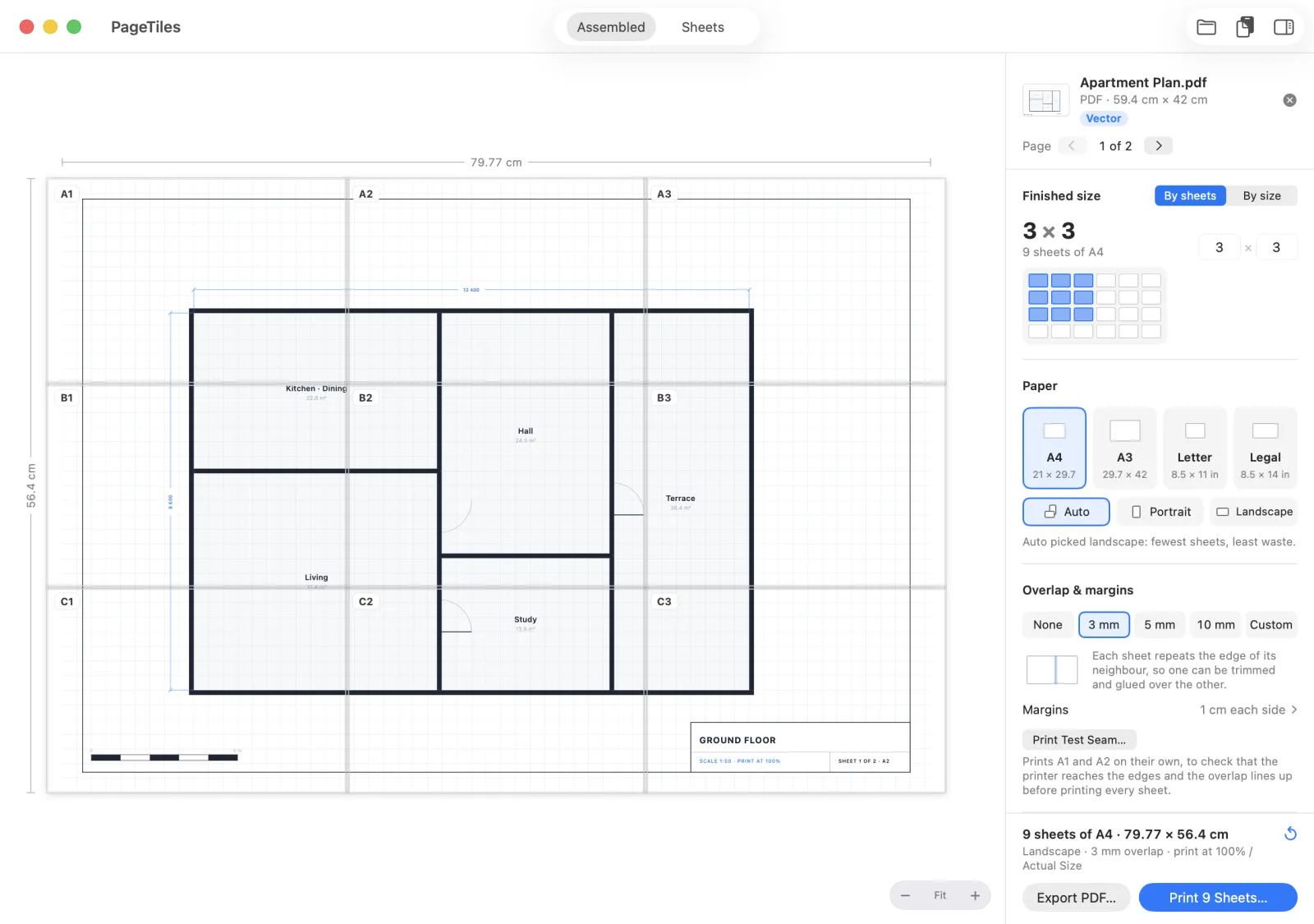
For a PDF with more than one page, use the arrows next to Page to choose which page to tile.
The Vector badge shows for every PDF, scanned ones included, because Page Tiles doesn’t yet check what’s inside. A PDF exported from a drawing app, CAD or Keynote really is vector. For a scan, zoom in on the preview to judge it.
Print it at its true size
- Choose By size and type the page’s width exactly as shown, 59.4 cm in this example. Height follows.
- Pick your paper. Page Tiles works out the sheets. An A2 page takes 8 sheets of A4 with the defaults.
- Turn on cut marks, alignment marks and labels. On a plan or pattern, alignment matters more than on a photo.
- Print Test Seam to check two sheets. Measure the scale bar or test square.
- Print every sheet at 100% / Actual Size.
Get Page Tiles on the Mac App Store $2.99 one-time · macOS 12+
Or print it at any size
Not every PDF needs to be its true size. A PDF poster, an infographic or a map can go bigger or smaller: choose By sheets or type a different width. PDFs made on a computer stay sharp however big you go, which makes them a better source than a PNG export for posters.
Common large PDFs
| Usual page size | Guide | |
|---|---|---|
| Sewing pattern, copy-shop file | A0, 84.1 × 118.9 cm, or 36 × 48 in | Sewing patterns |
| Floor plans, site plans | A1 to A3, at 1:50 or 1:100 | Plans and blueprints |
| Poster PDFs | A2, A1, 18 × 24 in, 24 × 36 in | Posters |
| Maps, charts, timelines | Any | Split for printing |
Questions
Can Page Tiles tile every page of a PDF at once?
Not yet. Each poster is one page. For a PDF with several large pages, tile and print them one at a time: step to the next page with the arrows and print again. Your paper, overlap and marks carry over.
Can I tile a PDF on Windows?
Adobe Acrobat Reader’s Poster option does it on Windows and Mac. Set Tile Scale to 100% to keep the true size.