Page Tiles Split an image for printing
Split an Image for Printing on Multiple Pages
A print split starts with each sheet's printable area. It also needs overlap for joining and labels that keep the pieces in order.
Why equal pieces don’t line up
Say you cut a photo into four equal quarters and print each on an A4 sheet. Three things go wrong:
- The printer can’t print to the edge. Most home printers leave 3 to 6 mm blank on each side. Your quarters either get shrunk to fit or lose a strip around the outside, and the strips don’t match between pieces.
- There’s nothing to glue. Butting two paper edges together leaves a white line or a gap.
- The scale drifts. Unless every piece prints at exactly the same scale, the joins step.
Splitting for print means working the other way round: start from the printable area of the sheet, lay the grid over the picture, and add an overlap strip between neighbours.
Split and print on a Mac
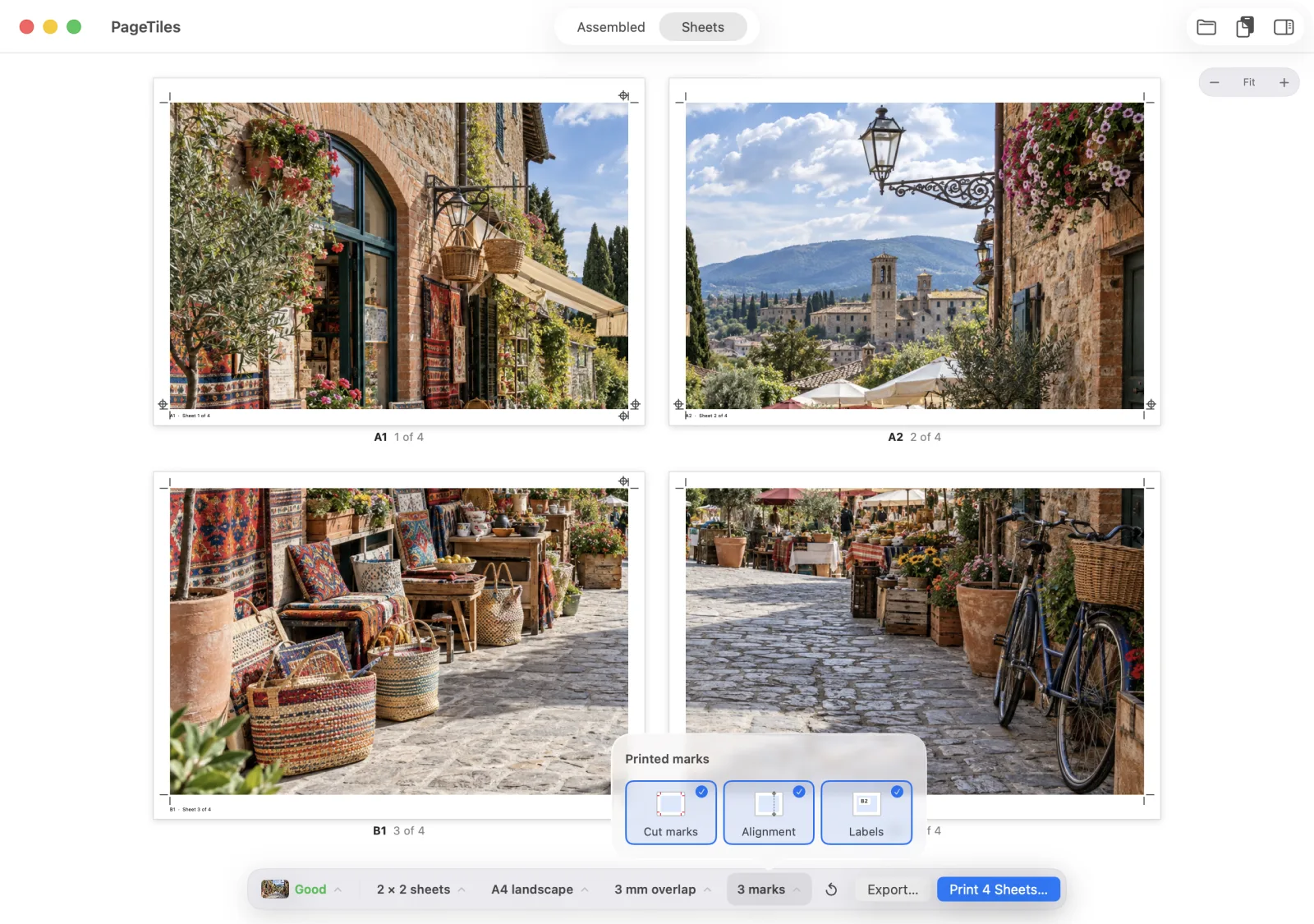
Page Tiles does the splitting from the paper up.
- Open the image or paste it with ⌘ V. JPEG, PNG, HEIC, TIFF and PDF pages all work.
- Choose the grid or the size. By sheets for “split into 6”, by size for “60 cm wide”.
- Pick the paper and overlap. The margins start at 1 cm, which suits most printers. Match a Printer sets them to what your printer reports.
- Turn on labels and marks. Labels print A1, A2, B1 in the margin of each sheet. Cut marks show where to trim, alignment marks where to line up.
- Print, or export the pieces as a PDF. One page per sheet, in label order.
Get Page Tiles on the Mac App Store $2.99 one-time · macOS 12+
Split an image on Windows
Paint’s Page Setup has a Fit to option that spreads a picture over a number of pages across and down. Some printer drivers also have a Poster or Tiling layout. Neither adds overlap or labels, so number the sheets in pencil as they come out of the printer. The main guide has the steps.
Splitting a long image
Screenshots of a whole web page, timelines and receipts are tall and narrow. Set the grid to 1 sheet wide and as many tall as you need, or use By size and type the width you want. Auto orientation still chooses between portrait and landscape sheets.
Splitting a PDF
A PDF page can be split the same way, and vector drawings stay crisp at any size. Printing a PDF on multiple pages covers page selection and printing a drawing at its true scale. Only by hand: duplicate the file, crop each copy to one part, and print each at the same scale. It works for two halves. For more pieces, lining up the crops and keeping the scale identical gets hard, and there’s no overlap. A PDF with one piece per page is easier: one file, the pages in order, and a fixed physical size so it prints the same on any printer at 100%. Page Tiles exports exactly that.Questions
Can I split an image into equal parts in Preview?
Should I split the image into files or into a PDF?